PRELIMINARY DRAFT - for internal VAS use only
See DairyComp 305 Online Help to view the production help build.
ALTER\3 : Command Abbreviations
In DC305, the ALTERCommands options allow you to add or delete commands, create command abbreviations, and more.
To access the Commands options window, enter ALTER\3 in the command line. Alternatively, you can also enter the ALTER command in the command line and select [3] Commands in the menu.
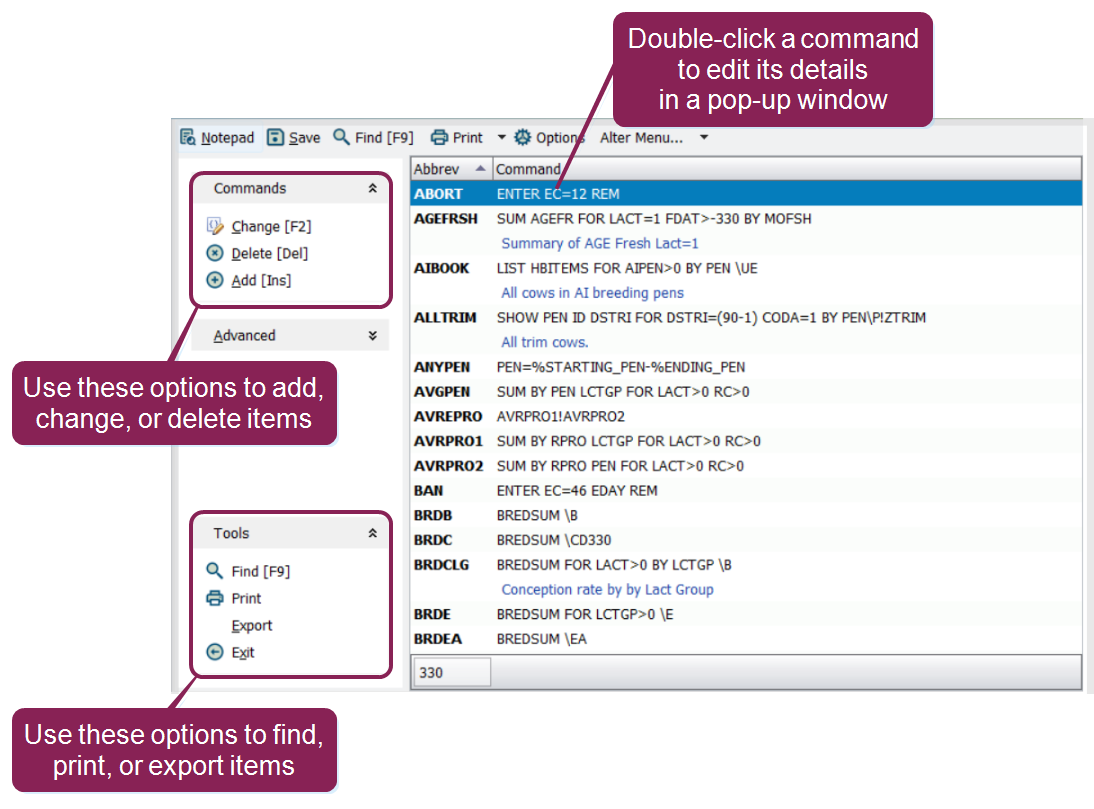
 Add a Command
Select this option to display a new window in which you can enter the abbreviation and contents for a new command.
A command abbreviation has three parts:
- Abbreviation: Limited to seven characters. EX: MYREPORT or BRED
- Content: Limited to 63 characters. This is the full command that the abbreviation represents, such as LIST ID RPRO PEN FOR LACT=1.
- Title: This is used primarily for reports. When command abbreviations are printed, the system displays the title instead of the abbreviation. The system can store up to fifty titles.
The system can store up to 255 command abbreviations.
Change a Command
Select this option to choose a command you want to modify and edit the abbreviation or contents.
To change a command, select the abbreviation you want to change and click the Change option in the Commands drop-down menu. You can also select an abbreviation and press the [F2] key on your keyboard.
Delete a Command
To delete a command, select the command, click the Delete [Del] option, and confirm deletion.
Export, Print, or Find All Commands
These options are found within the Tools drop-down list at the bottom right side of the Commands option window.
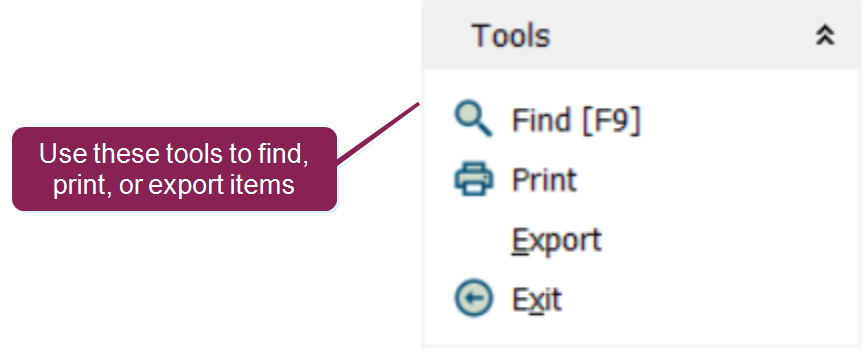
When selected, a new window will be displayed in which you can view or print all command abbreviations. You can either print the list from the browser or export the information to a file.
To find a specific command, click the Find option or press the [F9] button on your keyboard. Enter the abbreviation into the search bar. The system will automatically locate the command as you type.
Clear All Commands
If desired, the system will delete all command abbreviations. To utilize this feature, enter ALTER\S in the command line, and select [3] Commands. Prior to deleting all command abbreviations, the system will ask for confirmation.
Test Commands
If selected, the system will automatically test all command abbreviations. If a command fails, DC305will present a list of errors and their cause.
Save and Read Commands from a File
These features allow you to save or read the command abbreviation list to a file.
The Save option will place all command abbreviations into an ASCII file. From there, you can delete, add, sort, or edit the abbreviations. When saved, if no title for the file is given, the system will name it COMMANDS.LST and will be placed in the DC305’s program subdirectory.
Use the Read option to preview each command abbreviation. If there are duplicate abbreviations, the system will ask if you want to replace the old abbreviation with the new abbreviation or if you want to ignore the old abbreviation.