PRELIMINARY DRAFT - for internal VAS use only
See DairyComp 305 Online Help to view the production help build.
Create a Simple Batch Command for PCC
Question: How do I create and use a Simple Batch command for PCC?
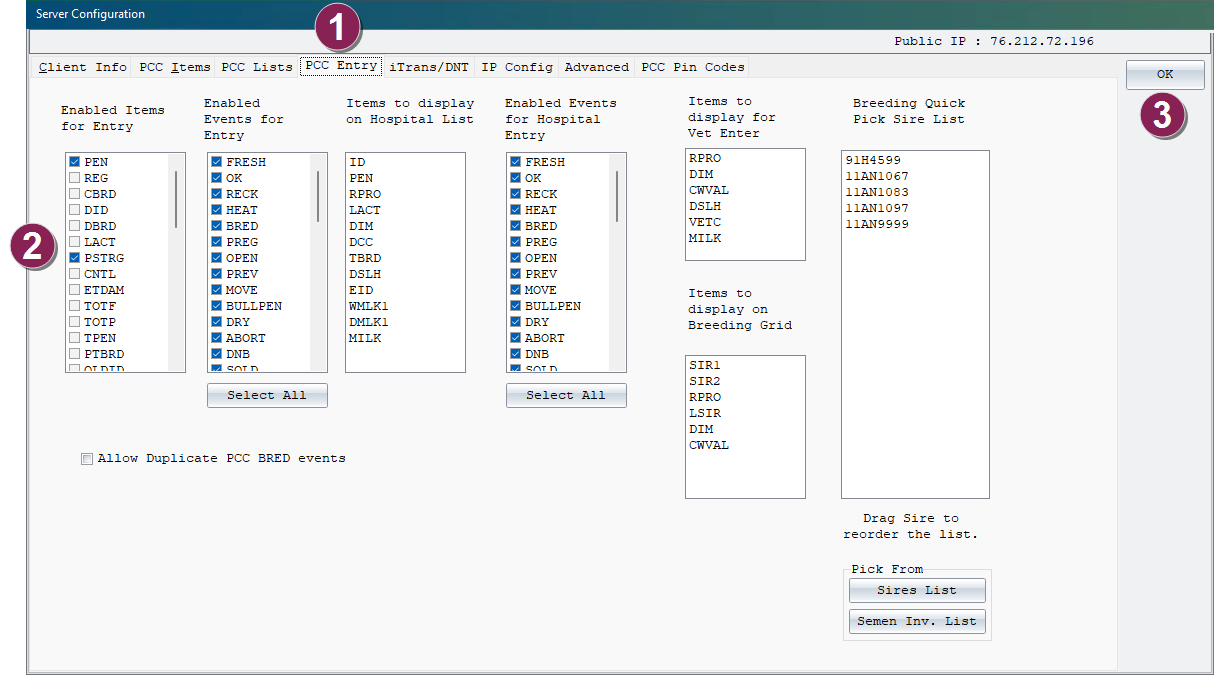
Answer: You can use the Simple Batch feature in PCC for Android. Use the SERVER\3 command in DairyComp to select the items that can be input:
- In DairyComp, enter SERVER\3in the command line to open the Server Configuration window, and then follow the steps below to select items for entry.
- Select the PCC Entry tab.
- Select the items to enable for batch entry from PCC.
- Click OK.
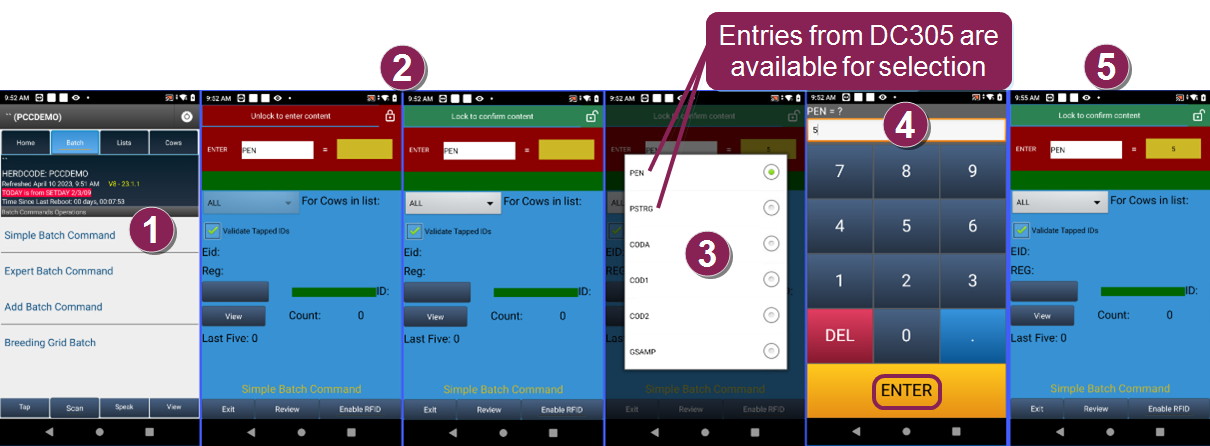
- In the PCC mobile app, follow the steps below to select the items to enter in batch from PCC.
- On the Batch tab in the PCC mobile app, select Simple Batch Command.
- Click the lock icon at the top right to unlock the content.
- Select the items to enable for batch entry.
- Enter the value for the batch item, which is the pen number in the example above, and tap ENTER.
- Tap the lock icon at the top right to confirm the content.