PRELIMINARY DRAFT - for internal VAS use only
See DairyComp 305 Online Help to view the production help build.
Create Shortcuts for PCC Hospital Form Entry
Question: How do I create shortcuts so I can quickly fill out hospital forms in PCC?
Answer: PCC Android has customizable shortcut options so you can quickly add events or expert batch commands when using hospital forms. Enable and configure this feature in your PCC settings in DC305, then use the feature in PCC:. Follow the steps below to continue:
- In DC305, enter SERVER\3 to open the Server Configuration screen.
- In the PCC Entry tab, navigate to the Select Event or Expert Batch for Quick Pick on Hospital Forms columns at the bottom left side of the screen.
- Form1:\HM1
- Form2:\HM2
- Form3:\HM3
- Form4: \HM4
- To assign an event or expert batch shortcut to the \HM1 switch, go to the Form1 column and double-click <Available> to open the Select screen.
- Select your most-used event and click OK.
- Repeat the steps for each shortcut you want to quick pick in hospital forms and select your shortcuts by most used to least used. You can add up to 8 shortcuts per switch.
- Create hospital worklists that implement the switches (\HM1 to \HM4) you just configured:
- ZLHOSP1:SERVER ID DIM PN NOTE FOR PEN=99\HM1
- ZLHOSP2: SERVER ID DIM PN NOTE FOR PEN=99\HM2
- ZLHOSP3:SERVER ID DIM PN NOTE FOR PEN=99\HM3
- ZLHOSP4: SERVER ID DIM PN NOTE FOR PEN=99\HM4
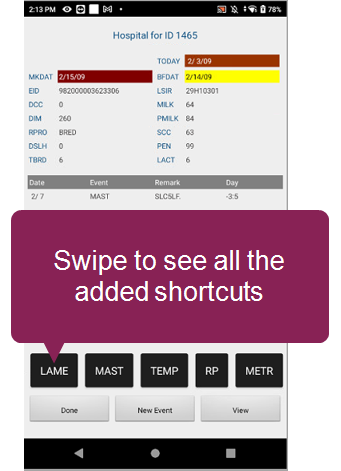
- In PCC, open a hospital worklist to see your new shortcuts at the bottom of the screen. Swipe left to right to see all shortcuts:

Each column corresponds to a switch that you can use in your worklist command: